
ChatGPT Image Aug 28, 2025, 03_49_18 PM

How to Prompt AI for Better Recipes

Some of my favorite meals have started with recipes I didn’t quite follow. It’s how I’ve ended up with Dutch babies on slow mornings, eggplant and tomato sauces cooked down into something rich and surprising, or kale chips that actually turned out crisp. Lately, I’ve even been playing with a Ninja Creami and a simple coconut ice cream.

Each of those started with a recipe, but they didn’t end there. The first recipe gives you an anchor — but the fun comes when you adapt, substitute, and experiment.

That’s why I like using AI as a recipe partner. Not to hand me the “one best” version, but to help me think through what’s possible, adjust for what I have, and give me confidence that the path I take will still work.

Start With Constraints

Before you copy the prompt below, pause and decide which of these three contexts fits your kitchen right now:

(a) Cost and access to ingredients is no issue — make the best-of-the-best version.

(b) I have the household ingredients of someone who enjoys cooking and can access most things, but I don’t need advanced or rare ingredients.

(c) I have limited ingredients and am newer to cooking — please provide substitutions or options when a step calls for something uncommon.

Pick one. Hold onto it. You’ll slot it into the prompt in just a second.

The Prompt

Copy, paste, and adapt:

Task & Framing
I want you to create a recipe for [insert dish]. Please synthesize from your strongest knowledge of cooking and baking technique; do not simply list best practices individually, but integrate them into a coherent, balanced recipe.

Constraint Selection
My chosen context is: [insert a/b/c option here]. Please carry this through the entire recipe, summary, and analysis.

Research & Summary
Open with one to two narrative paragraphs summarizing your research and key findings, framed by the context above. Briefly describe what techniques you analyzed, from where they are drawn, and how this dish has been discussed or adapted across sources; highlight your reasoning for which direction is most reliable and effective given the chosen constraint.

Method & Focus
When writing the recipe, draw on established culinary methods for this type of dish, including ingredient ratios, preparation steps, cooking techniques, and finishing methods; adjust amounts and steps as needed so the recipe is both correct and reliable.

Synthesis Request
Provide a single, unified recipe with a clearly listed ingredient section, and integrate ingredient amounts directly into the instructions so the user does not need to cross-reference. Do not overload with optional variations; choose the most effective approach and carry it through consistently.

Practical Details
Include approximate total time with both active and inactive times specified; effort level described as easy, moderate, or complex; serving size; one or two common pitfalls to avoid; a sentence on typical serving or presentation; and a note on what cooking skills the user will be improving by making this dish, such as sautéing, whisking, achieving the Maillard reaction, or balancing acidity.

Post-Recipe Analysis
After the recipe, provide explanations, citations, and comparative analysis for why you ultimately chose each technique over alternatives, again considering the context I selected. At the end of your response, also give me some options for deeper investigation — areas of technique, history, or ingredient science you find most relevant to the analysis you conducted, or that you think I might find most interesting as my cooking knowledge continues to develop.

Final Ask
Can you give me a recipe for [insert dish], fully carrying out the instructions above and shaped by the specific context I chose?

Optional Customizations

Beyond the core constraints, you can refine your recipe request further by adding details like:

  • Measurement system: grams and milliliters for precision, cups and spoons for ease.
  • Equipment available: stand mixer, Dutch oven, Instant Pot — or just stovetop + oven + basic tools.
  • Time limits: “Ready in under 30 minutes” or “I have all afternoon for a slow project.”
  • Dietary preferences: vegan, vegetarian, gluten-free, kosher, halal, dairy-free, etc.
  • Nutritional goals: higher protein, lower sodium, calorie-conscious.
  • Skill level: beginner step-by-step guidance or advanced technique for experienced cooks.
  • Ingredient sourcing: seasonal produce, pantry staples, budget-friendly brands, or specialty items.
  • Portion and scaling: family-style dinner, single-serving, or meal prep for the week.
  • Presentation goals: everyday eating, guest-ready, or festive plating.

You don’t need to add them all. Just the ones that matter most for your meal.

Why This Works

This structure pushes AI to act like a cooking instructor and researcher, not just a recipe collector. It creates synthesis instead of random tips, giving you a recipe that feels grounded, contextual, and tuned to your kitchen.

Try It Out

Pick a dish you’ve been wanting to try — maybe lasagna, sourdough bread, or a classic roast chicken. Drop this prompt into your AI chat, choose your constraint, add any customizations, and see what you get.

And then? Just start cooking. Don’t overthink it. Use a bot along the way to check your experimentation, but let yourself learn by stirring, tasting, and adjusting. That’s where the real fun begins.

Share what you learn and love about cooking with AI in our AI Studios on Tuesdays.
Screenshot 2025-06-24 155545

Affordable Computers to Keep You Connected

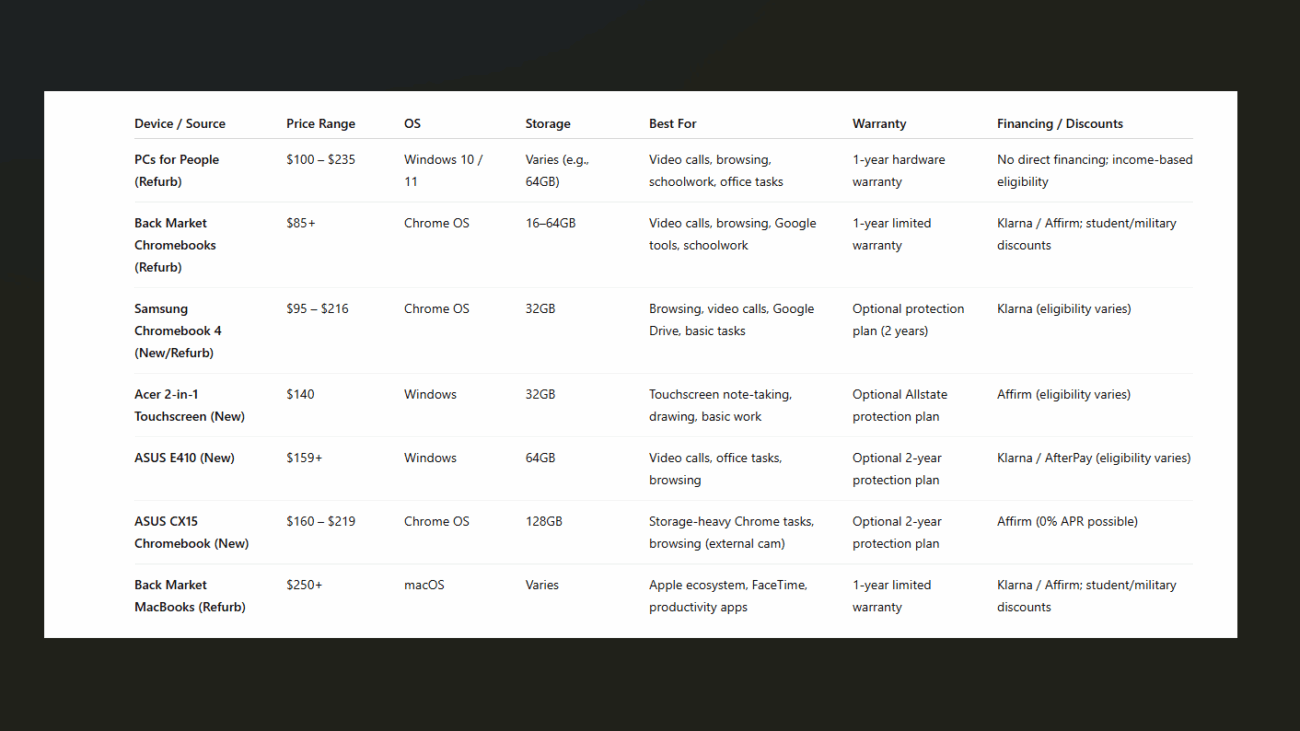
Finding low-cost tech in an ever-changing landscape can be tough, but far from impossible! Whether you’re a student, parent, job seeker, or someone just looking to stay connected, there are still great options out there. We’ve gathered several trustworthy alternatives—including both refurbished and brand-new computers—that can meet your needs without breaking the bank.

Quick Tips

  • Check the total cost (including shipping and tax) before purchasing
  • Look for trusted certifications like R2 Certified or Microsoft Authorized Refurbisher
  • Financing isn’t always automatic—you may need to apply or qualify for Klarna, Affirm, etc.
  • Certified refurbishers clean, reset, and test each device
  • Add a protection plan if you’re nervous about repairs—many sellers offer 1- to 2-year coverage
  • Ask about discounts if you’re a student, veteran, or part of a nonprofit
  • Make a list of what you need (camera? stylus? touchscreen?) to help narrow your options

In the list below, you’ll find important details for each option: how much it costs, whether financing is available, what kind of work it can handle (like video calls, browsing, or schoolwork), and what kind of support or warranty you can expect. We also note whether the seller is reputable, especially when it comes to refurbished tech.

Vendors

PCs for People

PCs for People is a trusted source for low-cost, refurbished laptops designed for income-eligible individuals and nonprofits. Devices typically range from $100 to $235 and are shipped nationwide, with transparent pricing that includes taxes and shipping fees shown upfront. In-person pickup is also available in cities like Baltimore, Denver, and St. Paul. All laptops are professionally refurbished and come from business-grade donations, with certifications including R2, NAID AAA, and Microsoft Authorized Refurbisher status. Each computer includes a one-year hardware warranty, and PCs for People offers support for returns and repairs if manufacturer defects arise. The laptops come with Windows 10 or 11 and are well-suited for video calls, web browsing, productivity tools like Microsoft Office or Google Workspace, and online learning platforms—making them a solid option for work, school, or staying connected.

Back Market

Refurbished Chromebooks on Back Market are a flexible and affordable option for those comfortable using Google tools. Devices start around $85 and are shipped nationwide, with shipping costs varying by seller. Back Market offers a wide selection of refurbished Chromebooks with specs like 16–64GB of storage, built-in webcams, and Chrome OS—making them a great fit for video calls, schoolwork, email, and browsing. All devices are sold by vetted refurbishers, and some are Microsoft Authorized or R2 certified (check individual listings for certifications). Purchases come with a one-year limited warranty, and buyers can access repair support through Back Market’s partnership with iFixit. Financing is available through Klarna and Affirm, and student, military, and veteran discounts are also offered. This is a reliable option for those looking for a solid basic device at a low price point.

Refurbished MacBooks on Back Market offer a more premium experience for those already using Apple devices. These professionally refurbished laptops typically start at $250, though prices can exceed $1,000 depending on the model and specs. Each device is inspected by certified sellers on Back Market, and many come with a one-year limited warranty. MacBooks are ideal for users who want to sync their laptop with their iPhone, iPad, or other Apple services, and they support tools like FaceTime, Zoom, and the full Apple App Store. While they do not support the Google Play Store, browser access to Gmail and other web-based tools is available. Financing is offered through Klarna and Affirm, and Back Market provides discounts for students, military members, and veterans. Repair support is available through iFixit, making these MacBooks a reliable investment for those in the Apple ecosystem.

Affordable Computers

The Samsung Chromebook 4 is an accessible and versatile option, available new or refurbished through Amazon, typically ranging from $94.95 to $215.99. It’s built for everyday tasks like web browsing, video calls, and document editing, with Chrome OS, 32GB of storage, a built-in webcam, and up to 12 hours of battery life. The Chromebook 4 is compatible with Google Drive, Google Docs, Gmail, and the Play Store, making it ideal for Android, Pixel, and Samsung users. Though it doesn’t support Apple or Microsoft-exclusive apps, it offers browser access to many tools. Shipping is available nationwide, with taxes and fees clearly listed at checkout. Amazon offers an optional two-year protection plan for $29.99, and financing may be available through Klarna or other partners depending on eligibility. For peace of mind, it’s best to check seller reviews when buying refurbished models.

The Acer 2-in-1 Touchscreen Laptop is a great choice for users who want a flexible, portable machine for both work and creativity. Priced at $139.99 through Walmart, this new device features a Windows interface, a detachable touchscreen, 32GB of storage, and built-in webcam functionality. It’s Bluetooth stylus-compatible and lightweight at just 2.6 pounds, making it a good fit for students, artists, and individuals who prefer a hands-on user experience. Walmart provides free shipping, and optional protections include a two-year Allstate Protection Plan and remote tech support for an additional fee. Financing through Affirm may be available for those who qualify. This laptop is ideal for anyone seeking a touchscreen option that works equally well for video calls, note-taking, and basic productivity.

The ASUS E410 is a dependable entry-level laptop for those who prefer Windows. Starting at $158.88 on Amazon, it features an Intel N4020 Dual-Core Processor, 64GB of storage, a 10-hour battery life, and a lightweight 2.8-pound design. With a built-in webcam and microphone, it’s well-suited for video calls, online classes, and using tools like Microsoft Word, Zoom, and Google Docs. While it doesn’t come with Google Chrome extensions pre-installed, they can easily be added. The ASUS E410 ships nationwide and is generally sold new, with transparent pricing at checkout. Amazon offers an optional two-year protection plan for $36.99, and financing options may be available through Klarna or AfterPay on a case-by-case basis. This is a simple and affordable choice for reliable everyday use.

The ASUS CX15 Chromebook is another new option that blends performance and storage. Priced between $159.99 and $219.00 through Walmart, it runs on Chrome OS and comes equipped with an Intel Celeron N4500 processor and 128GB of storage. Though it does not include a built-in webcam, it is compatible with external webcams and comes with a three-month Google Gemini AI trial. The device is intuitive and easy to set up, making it great for first-time users. Shipping is free through FedEx or UPS, and support options include a two-year protection plan ($36) and remote tech support for $89.99 per year. Financing through Affirm may be available with 0% APR offers depending on eligibility. The ASUS CX15 is a strong pick for users who need extra storage and are comfortable navigating Chrome-based systems.

No matter your needs, there’s an option out there. Whether you’re shopping for your first laptop, replacing an old one, or helping a neighbor or loved one get connected, we hope this list helps make the search feel a little less overwhelming. Affordable tech doesn’t have to mean unreliable, especially when you know what to look for. From refurbished Chromebooks to brand-new Windows laptops, these options are proof that you can stay connected without spending a fortune. And remember, there’s no shame in asking for help navigating tech—there are communities, organizations, and digital navigators (like us!) who are always here to help.

Glossary of Terms

  • Refurbished: A pre-owned device that has been professionally restored, cleaned, and tested to work like new.
  • R2 Certified: A certification that ensures electronics are responsibly recycled or reused, and refurbished to a high quality.
  • Microsoft Authorized Refurbisher: A program that ensures refurbished devices come with genuine Microsoft software.
  • Chrome OS: A lightweight operating system made by Google, commonly used in Chromebooks.
  • Windows OS: A widely used operating system from Microsoft, compatible with most traditional software.
  • Financing (Klarna, Affirm, AfterPay): Services that let you split a purchase into smaller payments over time—approval depends on your credit or financial history.
  • iFixit: A website that offers step-by-step repair guides and tools to help fix devices at home.
  • Protection Plan: An optional extended warranty that covers repairs or replacements if something breaks.
  • Webcam: A small camera built into or attached to your computer for video calls.
  • Stylus-compatible: A screen that works with a digital pen or stylus, useful for drawing or writing.
Blog Header Image 2 - Factory Logic Why Older Adults Worry About Breaking Tech

Factory Logic: Why Older Adults Worry About “Breaking” Technology — And How We Can Teach Differently

“What if I click the wrong thing and break it?”

Among older adults learning to use technology, this question is common. It arises not from resistance to learning, but from a memory of environments where mistakes were costly, public, and difficult to undo.

To understand this fear is to understand something essential about how older adults approach unfamiliar systems — and how teaching technology is often less about the device in hand and more about the world a learner comes from.

Systems That Could Not Afford Mistakes

Many older adults entered their working lives in settings shaped by what might be called factory logic — a way of operating that prizes stability, precision, and the seamless function of a system.

In these environments — factory floors, production lines, bookkeeping desks — a single error could slow or stop production. Tools were built for consistency and longevity, not for experimentation. Machines were not meant to change shape beneath their hands. Tools did not update overnight. Systems were stable — or they failed.

Technology, by contrast, often feels unpredictable. Its processes are invisible, the consequences of error are unclear, and where the usual cues of craftsmanship and reliability are harder to find.

A 2019 systematic review in Gerontechnology identified fear of making mistakes as one of the most persistent barriers older adults face in engaging with technology. This fear was not about a lack of curiosity but about uncertainty over what would happen next — whether a wrong move might lead to loss, to damage, or to embarrassment.

And beneath this caution lies another, quieter influence: how one views aging itself.

Research published in BMC Public Health suggests that older adults who carry negative perceptions of aging are more likely to experience anxiety when using new technologies, regardless of their skill level. To hesitate is not only to doubt the device — it is sometimes to doubt one’s own capacity to adapt.

This is not a technical problem. It is a human one.

Teaching With Systems in Mind

This way of viewing technology offers valuable lessons for instruction. When older adults hesitate, they are not failing to adapt. They are applying the caution that once protected them.

Older adults often want to understand why something works before they are willing to trust it. As research in Frontiers in Psychology notes, confidence in using technology among older adults increases not simply with exposure, but with clarity — with opportunities to build understanding, not just memorize steps.

A study on older adults’ use of health technology found that older learners often seek to understand how a system works before they feel comfortable engaging with it. Trust, in these cases, is built not through repetition alone, but through understanding.

1. Emphasize Reversibility
Most actions in digital environments are reversible — but this is not obvious to those accustomed to tools built for precision rather than flexibility. Instruction should begin with clear demonstrations of undo functions, reset options, and the ability to recover from errors. Speak openly about the ways digital environments forgive mistakes — often far more easily than the mechanical systems learners knew before.

2. Use Familiar Systems as Metaphors
Analogy is one of the most effective tools available to instructors. Folders behave like filing cabinets. Password managers function as lockboxes. The cloud is best introduced not as an abstract concept but as something closer to a bank vault or a storage facility — remote, but accessible by key. These metaphors allow older learners to place new skills within familiar structures.

3. Teach Systems, Not Just Steps
A list of instructions may produce temporary results; understanding produces confidence. Older adults are rarely unwilling to learn; rather, they are unwilling to operate blind. Older adults often want to know why a process exists before they feel at ease using it. Explaining the logic behind digital processes builds trust and fosters independent learning. Teaching the architecture of technology — its logic, its structure, its safeguards — restores a sense of orientation.

4. Create Safe Environments for Exploration
Wherever possible, practice spaces should allow mistakes without consequence. Dummy accounts, unused devices, or offline practice sheets give learners the chance to try freely, to explore without fear of immediate failure.

Encouraging exploration, while remaining available for guidance, transforms anxiety into curiosity.

Every Hesitation Tells a Story

Older adults bring to technology not only their caution, but their mastery of systems, their care for precision, and their memory of tools that could not afford to fail.

When teaching digital skills, it is easy to focus on what learners do not yet know.

More useful, perhaps, is to ask what they already understand — and what world taught them to understand it that way.

Every hesitation carries history. Every careful question reveals not only uncertainty, but wisdom.

And every good teacher learns to listen for both.

Blog Header Image - You’re Not Getting an Answer You’re Shaping One

You’re Not Getting an Answer—You’re Shaping One

What actually happens when you prompt a chatbot?

When you ask a question, you expect an answer.

That’s the deal we’ve made with the internet for decades: you type, it delivers. And with chatbots, the experience feels even more immediate—responses are quicker, more conversational, and often surprisingly well-tailored to your request.

But here’s the twist: with a chatbot, you’re not just asking for an answer.
You’re shaping a prediction.

Chatbots Don’t Recall Facts—They Extend Patterns

Unlike a search engine, a chatbot doesn’t go looking for existing answers. Instead, it generates a response based on everything it’s learned during training—millions of patterns, drawn from books, websites, forums, codebases, and conversations.

When you prompt a chatbot, it scans the entire conversation so far and makes a statistical guess about what should come next. Not what’s “correct,” but what fits. What’s likely. What flows.

In other words: it doesn’t recall—it responds.

And that means your question isn’t just a request.
It is part of the system’s thinking.

Prompting Is Context Sculpting

Every prompt adds something to the room.

Your input becomes part of what’s called the input context—the collection of signals the model uses to guide its prediction. This context can include:

  • Your current prompt
  • Prior messages in the conversation
  • Any documents or reference info you’ve pasted in
  • Invisible system instructions that shape how the model responds

The model takes all of that and says: Given what I see, what’s the most likely next?

A metaphor helps here:

  • When you walk into a coffee shop, you expect to be served coffee.
  • Walk into a brewery, and you expect beer.
  • You don’t expect either in a hardware store—but if you walk into a restaurant, you might anticipate the possibility of both.

We update our expectations based on the setting.
So do chatbots.

Your prompt creates the setting.
The bot adjusts its response to match.

You Don’t Interrupt the Pattern—You Become Part of It

You can shift a chatbot’s output not just by asking a question, but by changing the context around it.

The following content is accessible for members only, please sign in.

Blog Header Image 3 - Why Digital Skills Are the Baseline for Modern Employment

Why Digital Skills Are the Baseline for Modern Employment

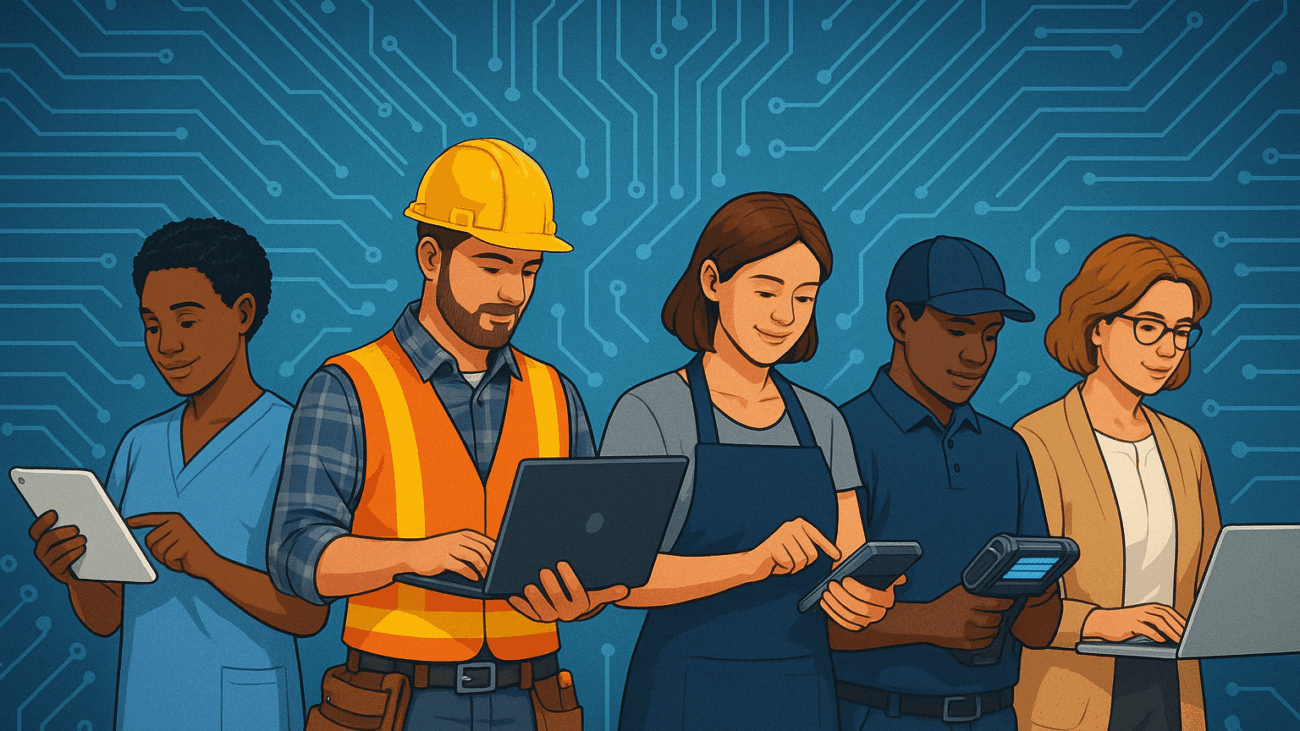
There’s a quiet but decisive shift happening in today’s job market. Walk into any industry—healthcare, construction, retail, logistics, social work—and you’ll find digital skills not as a luxury or a bonus, but as a baseline.

Whereas only 44 percent of U.S. jobs required medium-high digital skill levels in 2002, 70 percent did by 2016 (Brookings Institution). According to the National Skills Coalition, today 92% of all job postings require some level of digital skill. This isn’t limited to tech jobs. It’s cashiers using point-of-sale systems, warehouse workers managing inventory with handhelds, or health aides inputting data on patient apps. Digital literacy isn’t a tech trend—it’s a workforce reality.

Digitalization is transforming the nation’s job roles both by expanding the digital content of hundreds of existing jobs and shifting the overall job mix toward more digitally intensive occupations.

Digital Skills = Higher Wages

“Workers with superior digital skills are more and more earning higher wages (all other things being equal) than similarly educated workers with fewer digital skills.”
Digitalization and the American Workforce, pg 24

The data is clear. Workers qualified for jobs that require even one digital skill can earn an average of 23 percent more than in roles that require none. And making the jump to a job requiring at least three digital skills? That can lead to an average 45% increase in pay (National Skills Coalition).

In 2022, the World Bank piloted a market-aligned digital skills program designed to meet employer demand and build pathways to certification. Just three months after completion:

  • Employment rates rose by 18%
  • Participants’ average annual earnings increased by 94%
  • The unemployment rate among graduates dropped by 18.5%

This kind of return—both personal and economic—is hard to ignore.

Certification Builds Trust—and Access

Knowing how to use digital tools is important. Being able to prove it is game-changing.

Digital credentials have emerged as a powerful way to demonstrate your readiness—no matter your academic background. In fact, according to the Brookings Institution, digital skills boost wages across all education levels, even when comparing workers with the same degree.

Certifications make those skills visible. They signal that you’ve taken initiative, invested in yourself, and understand the tools employers rely on. That’s why more and more hiring managers are looking beyond résumés and degrees to verify practical, up-to-date skills.

In a study published in the Journal of Public Economics, earning an online certification increased the likelihood of employment by 25%.

For jobseekers facing barriers—such as limited work history, justice involvement, or career transitions—certification is a trust builder. It helps level the playing field, offering a clear way to communicate your value and step into better opportunities.

You don’t need a four-year degree to move forward in today’s economy. You need skills—and a way to show them.

Final Word: Digital Skills Are No Longer Optional

We’re past the era where digital literacy was “nice to have.” Today, it’s a gateway—one that unlocks better jobs, higher wages, and a foundation for long-term growth. Whether you’re changing industries, re-entering the workforce, or supporting people navigating life transitions, digital skills aren’t just relevant—they’re essential.

You don’t need to know it all.
You just need to take the next step.

We’re all moving through a digital transformation—together. And taking even a few steps toward building your digital skills can have a massive impact on your job prospects, confidence, and experience in the labor market.

Where to Start: CTIC Can Help

The Carroll Technology and Innovation Council (CTIC) is here to walk with you as you build your digital confidence. We offer:

  • Digital navigators who can guide you toward certifications that match your goals
  • Free and low-cost classes, coaching, and learning materials
  • Support exploring free online courses, from foundational computer use to more advanced tools
  • Opportunities to discuss your goals with other learners and local employers so you can see where your skills fit

Whether you’re looking to start small or go big, CTIC is here to help you grow—on your terms.

Connect with a digital navigator, email train@carrolltechcouncil.org or call 443-244-1262

Screenshot_21-5-2024_17315_chatgpt.com_

Understanding EMFs: Protecting Yourself in a Connected World

Got electromagnetic fields?

We all do. Whenever we are around our devices and power sources. But what are they and what are they doing?

An electromagnetic field (EMF) is the energy area surrounding an electrical device. The movement of electrical charges within these devices creates non-ionizing radiation, meaning it doesn’t have enough energy to ionize atoms or molecules.

Low-frequency EMFs are found around power sources like power lines, electrical wiring, and appliances. High-frequency EMFs, ranging from 300 Hz to 300 GHz, are associated with wireless communication technologies such as radios, televisions, microwaves, and mobile phones.

The basis of modern technology is electromagnetism, the connection between electricity and magnetism. This relationship was first identified by Hans Christian Ørsted in 1820 when he observed that an electric current deflected a compass needle, indicating that electric currents produce magnetic fields

Electricity involves the movement of electric charges. Their movement generates a magnetic field. As the magnetic field changes it generates an electric field. Changing electrical fields produce magnetic fields and vice versa. This interaction creates electromagnetic waves, as described by James Clerk Maxwell’s work in the mid-19th century. These waves travel at the speed of light and encompass a spectrum from radio waves to gamma rays.

EMFs link electric and magnetic fields. Electric fields arise from stationary electric charge while magnetic fields arise from moving electrical currents. When charges move, they create both fields, which interact to create electromagnetic waves. An EMF is the combined effect of this dynamic interaction.

Frequency is the number of oscillations per second of the electromagnetic wave, measured in hertz (HZ) and usually observed in this context as megahertz (MHz) and gigahertz (GHz). Higher frequency waves have more oscillations per second – MHz has one million cycles per second, GHz has one billion. The higher the frequency, the shorter the wavelength. The wavelength determines the wave’s ability to penetrate materials and also its range of influence.

Mobile phones emit high-frequency electromagnetic waves, or radiofrequency (RF) waves, for wireless communication. These RF waves range from a few megahertz to several gigahertz and, when on the higher end of the spectrum, they are able to transmit data over long distances. So, what does our phone emit when we use it – and when we don’t?

Making Phone Calls RF waves 700 MHz to 2.5 GHz
Using Mobile Data 

Internet browsing, streaming, online activities

3G networks operate within 800 MHz to 2100 MHz

4G LTE networks operate within 700 MHz to 2600 MHz

5G networks

  • Low-band frequencies operate within 600 MHz to 900 MHz
  • Mid-band frequencies, 1.7 GHz to 3.7 GHz
  • High-band frequencies, 24 GHz to 39 GHz
Using Wi-Fi RF waves 2.4 GHz to 5 GHz
Using Bluetooth RF waves 2.4 GHz
Carrying the Phone

Cellular, Wi-Fi, and Bluetooth signals are still active

RF waves from cellular signals, Wi-Fi (2.4 GHz to 5 GHz), and Bluetooth (2,4 GHz)

The specific absorption rate (SAR) measures the rate at which the body absorbs RF energy, in watts per kilogram (W/kg). RF waves from mobile phones penetrate the body to varying depths. For example, 700 MHz waves can penetrate a few centimeters, while 2.6 GHz waves penetrate less than 1 centimeter, mostly absorbed by the skin and superficial tissues. Have you ever noticed your ear getting hot or sweaty during a phone call? This is a result of continuous exposure to RF energy. 

Prolonged RF exposure can have non-thermal biological effects, such as oxidative stress, DNA damage, and changes in cell function. The International Agency for Research on Cancer (IRAC) classified RF radiation as “possibly carcinogenic to humans,” based on evidence of an increased risk for glioma, a type of brain cancer, with heavy, long-term mobile phone use (IARC Interphone Study Results, International Journal of Epidemiology – Interphone Study). This was defined as using the phone for 30 minutes per day on average over 10 years.

Studies indicate that, with an average SAR of 1.0 W/kg, using a phone for 30 minutes per day results in absorbing about 1800 joules/kg daily. Given that 18-24 year-olds in the United States use their phones for about 4 hours and 35 minutes per day, this equates to 16,200 joules/kg daily. This modern usage is nearly 9 times higher than the levels associated with increased brain tumor risks in earlier studies.

If the studies showing increased risks of brain tumors with lower levels of RF exposure are accurate, significantly higher exposure levels among young adults today should be a serious cause for concern.

EMFs are most intense within a few centimeters to a meter from the phone. The intensity rapidly decreases beyond this range, making near-field exposure the most relevant for personal health.

To reduce exposure from mobile phones, use some of these strategies:

  • Go Hands-Free
    • Use the speakerphone, wired earbuds, or headphones to keep the phone away from your head. While Bluetooth headsets emit some EMF, the levels are much lower compared to holding the phone to your ear.
  • Limit Mobile Phone Calls
    • Keep mobile phone calls close to your ear short. For longer conversations, consider using a landline if possible.
  • Avoid Direct Contact
    • Avoid carrying your phone in your pocket or close to your body. Instead, use a bag or place it on a nearby surface.
    • Avoid sleeping with your phone near your head or under your pillow. Place it on a bedside table at least a few feet away or in a separate room.
  • Use Airplane Phone
    • When you don’t need cellular connectivity or when you are connected to WiFi, enable airplane mode to disable the phone’s wireless transmissions.
    • If you need to carry your phone in your pocket or close to your body, put it in airplane mode.
    • Better yet, try to make a habit of slipping into airplane mode when you aren’t using it. You can also still choose to be connected to WiFi. Even still, in airplane mode, you’ll be helping reduce EMF emissions.
  • Reduce Background Apps
    • Limit the number of apps running in the background that require continuous data exchange, which can increase EMF emissions.
  • Optimize Signal Strength
    • Use your phone in areas with strong reception to reduce the phone’s power output, as phones emit more radiation when trying to connect in areas with poor signals.
    • Avoid using your phone near metal objects, which can amplify EMF exposure.
  • Use EMF Shields
    • Use cases and shields designed to block or reduce EMF radiation
  • Avoid Concurrent Use
    • Minimize the use of other EMF-emitting devices simultaneously (e.g. laptop) to reduce cumulative exposure. 


Environmental Working Group guidelines on cell phone radiation

World Health Organization recommendations on reducing exposure to mobile phone radiation

CTIC-BlogPost-Stocks

Affordable Connectivity Program prepares for a pause

January 11, 2024, the Federal Communications Commission (FCC) released an Order informing that the Affordable Connectivity Program (ACP) is expected to end Spring 2024.

In 2021, Congress established the Affordable Connectivity Program in the Bipartisan Infrastructure Law and appropriated $14.2 billion for the program. The FCC was tasked to develop and implement the ACP as well as ACP outreach and awareness activities.

Since its implementation, over 22.5 million households nationwide, and more than 279,909 households across Maryland – 1 in 8 households – have utilized the program’s monthly $30-75 discount on internet service. District 2, comprised of parts of Carroll and Baltimore counties and small portions of the Baltimore city, has 30,153 households enrolled – 10% of all households.

The program is projected to run out of funding by April 2024. If this forecast is correct and no additional funding from Congress is received, we expect to see a statement from the FCC in March 2024, announcing the last fully funded month of the ACP.

Consumers must enroll in the program by February 7, 2024, 11:59 EST. Enrollment consists of ACP approval and enrollment with an internet company, so potential consumers should not delay in starting the process as it needs to go through FCC approval and internet service provider initiation.

All households enrolled in the ACP will continue to receive the benefit on their internet service until ACP funding. During the wind-down period, ACP households will receive notices from their internet company about the status and the impact of the ACP benefit ending:

    • Notification 1: Late January 2024, consumers will be updated about the possibility of ACP’s end and the potential bill impact.
    • Notification 2: Fifteen days after FCC announces the last fully funded month of the ACP, consumers will be told of the ACP’s ending, date of the last bill ACP will be applied, cost of the bill without the ACP discount, and information about changing or stopping service.
    • Notification 3: During the customer’s last bill or last billing cycle with ACP benefit, consumers will be reminded of the ACP’s ending, date of the last bill ACP will be applied, cost of the bill without the ACP discount, and information about changing or stopping service.

Internet service providers and U.S. Senators and Representatives are advocating for the continuation of internet service discounts to eligible households.

“Congress should continue to fund the ACP because Internet access has become essential to modern life, and one’s economic situation should not dictate whether or not they can participate in today’s economy,” said Kevin Brown of Quantum Internet and Telephone, a local family owned and operated Internet and telephone service provider based in Manchester, MD.

U.S. Senators Peter Welch (D-Vt.), JD Vance (R-Ohio), Jacky Rosen (D-Nev.), and Kevin Cramer (R-N.D.) and U.S. Representatives Yvette D. Clarke (NY-09) and Brian Fitzpatrick (PA-01)  led their colleagues in the bicameral, bipartisan introduction of the Affordable Connectivity Program Extension Act (H.R.6929S.3565). The legislation would provide $7 billion for the ACP.

Digital equity organizations are showcasing the impact of ACP in hopes of displaying to legislators the power of the program for workforce development, community connection, and individual involvement in all sectors of life.

ACP Alternatives

Folks can also explore Lifeline, a federal program that helps limited income consumers pay for their telephone and internet services by providing a monthly discount. The cost of the program is shared by all telephone customers. In Maryland the program is called Tel-Life. You will sign up through a Lifeline provider company directly. Many companies advertise their Lifeline services, or you may find a list at www.lifelinesupport.org. When you sign up for Lifeline, you will need to provide full legal name, date of birth, last four digits of Social Security number, and address.

ACP Wind-Down Resources:

ACP Wind-Down Fact Sheet
ACP Wind-Down FAQ

Programa de Descuentos para Internet (ACP) hoja informativa sobre el fin del programa

What internet plan is right for you?

CTIC-BlogPost-Comment

Maryland Digital Equity Plan

OSB has released the Maryland State Digital Equity Plan- DRAFT, and is requesting comments emailed through December 2, 2023.

The Baltimore Digital Equity Coalition (BDEC) has created an awesome share spreadsheet OSB- Public Comment Collection Spreadsheet where you can enter comments and see the comments of others by section of the plan.

Key portions of the Maryland Digital Equity Plan:

Pg 1-5 Section 1.1 and 1.2: Digital Equity Principles and Barriers (see also Table 1 – covered populations – the state is going to organizing funding around reaching these groups)

Pg. 6-10 Section 1.5: Implementation Plan

Pg 16-18 Section 2.3.1: Strategies for overcoming barriers

Pg 18-30  Section 2.2.3: Objections and performance indicators.  NOTE:  OSB has listed statewide percentages for each metric, but not provided any baseline numbers to the total improvements in each area, no breakdown by county, and are using data sources that aren’t very granular.  And for almost all categories, the plan says the state has a very small digital equity problem.

Pg 32-44 Section 3.1.3:  Chart of existing digital equity assets (i.e., programs and organizations) by covered population – if you provide digital equity services, make sure you are in here

Pg 48-54 Section 3.1.3: Chart of digital equity programs (if you run a large digital equity program, make sure you are in here)

Pg 63-76 Section 3.2: Chart listing the obstacles by covered population to achieving: broadband availability, broadband adoption, digital skills, online security, and device adoption.

Pg 69 Section 3.2.1 Covered Populations:  The state seems to be stating that they couldn’t find reliable sources of data for Individuals with Language Barriers and Individuals Who Have Low Levels of Literacy, so they aren’t going to speculate.  But it’s not clear whether in the charts that follow, the State is capturing the digital equity gap for these populations.

Pg 78-98 Please skim these charts.  There are people with skills in statistical analysis who will be weighing in on the Plan.  But look at the tables – in most cases the Plan is stating there is 20% gap or less between the covered populations and the rest of the state, i.e., that where 95% of the state has a specific type of digital service/device, 70% to 80% of covered populations have that same service. For example, see Table 33 on page 97 states the percentage of people have a computer or desktop by covered area:

  • 92% of higher income compared to 65.7% of lower income people -26.3% differential)
  • 89.7% of White compared to 85% of minorities (-4.7% differential)
  • 89.1% of people without disabilities compared to 73.7% of people with disabilities (15.4% differential)
  • 87.8% for people with English proficiency and 81.2% for English learners (-6.6% differential)

If, in your experience, the groups you serve do not have access to digital equity services and devices at these levels, the State needs to hear from you.

Also, compare the above data with Table 35, 36, and 37 on pages 154-158.  These tables provide a breakdown of the number of computers by household by income, race/ethnicity, and at-risk status.

Pg 171 Table 41: Confidence using the internet by household income.  There is a similar chart by age on pg 180, but no corresponding charts by race/ethnicity, language barriers, or education level.


Join us for the MDEC Listening session with the State and provide that feedback.  If you have time, make comments in the shared spreadsheet provided by BDEC as well. Click here to join the MDEC or share with others.

Title

Who are your digital navigators?

Where are we going? And, who is taking us there?

We announced Jack and Diana joining the CTIC Team – two digital navigators with the American Connection Corps. What does a digital navigator do, you might be wondering? A digital navigator is a trusted guide who plays a crucial role in assisting community members in internet adoption and the use of computing devices, building relationships with partners and organizations and emphasizing the strengths of the community in the process.

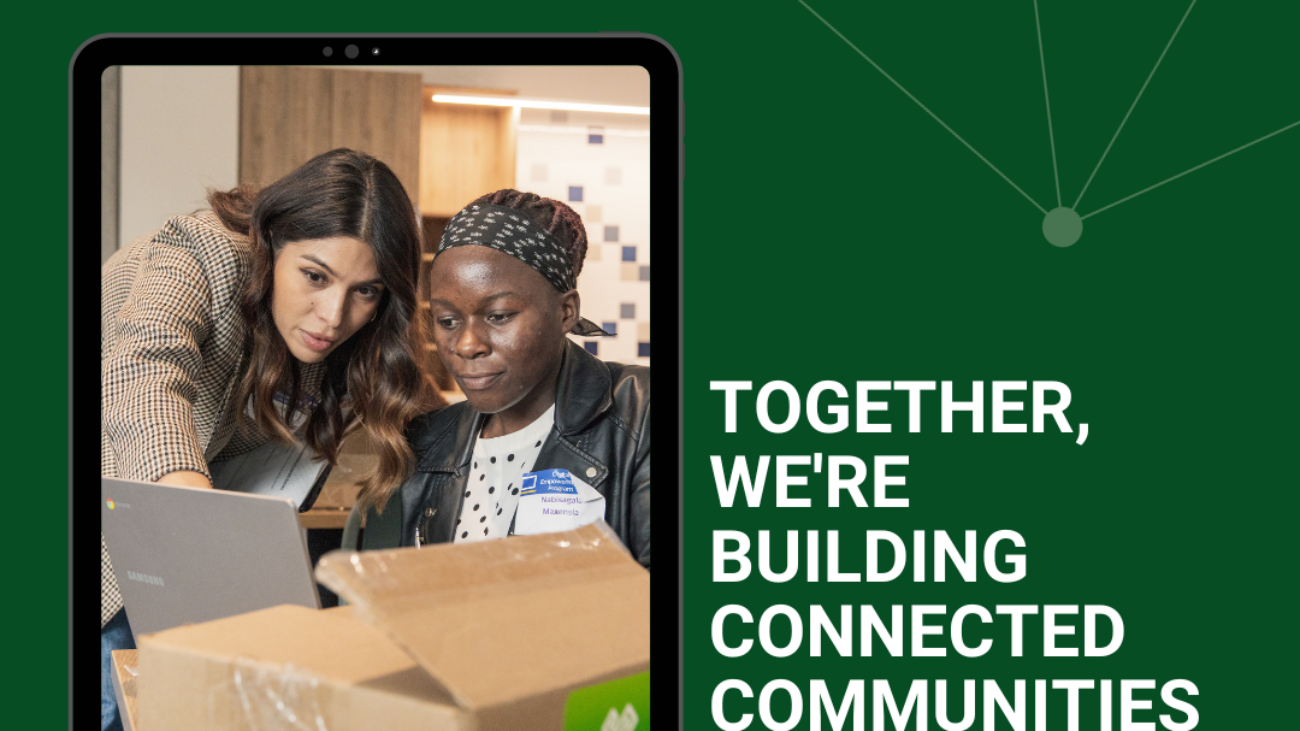
Jack and Diana are here to help community members acquire affordable internet access, obtain suitable devices, and develop digital skills and intentional relationships with technology – digital inclusion work. Well-versed with digital equity resources, they empower individuals to leverage technology towards their ambitions.

Our digital navigators will be working on an asset map with digital inclusion resources in Carroll County. This asset map will include the digital inclusion programs the Carroll Technology and Innovation Council is developing, along with the work of our partners. Any organization can be orient their work towards digital equity as resource access and online collaboration can progress many goals.

On a typical day, our digital navigators can work on a variety of tasks including

  • Planning or delivering instruction at a Senior Planet event
    • In partnership with the University of Maryland Extension, we work in collaboration with Senior Planet to deliver workshops, lectures, and courses that progress the unique goals and ambitions of participants.
    • Senior Planet programs are designed around five impact areas: financial security, social engagement, creative expression, health and wellness, and civic participation. These areas represent opportunities in the lives of older adults where technology can have a transformative effect. In essence, the programming invites participants to learn through technology – instead of just having them learn technology for its own merit and without relevant applications integrated into the instruction.
  • Communicating with a Veteran as part of the Veterans Transition to Technology program
    • The Veterans Transition to Technology programming is designed to assist in digital equity and inclusion efforts in Maryland by addressing the challenges our veterans face when seeking work and support. We provide them with the technology, training, and partnership needed to successfully navigate an increasingly digital world.
  • Attending a digital equity training session
  • Researching a blog or building digital equity resources
  • Creating or attending device distribution events
  • Planning community action days

Digital Navigators are vital in our community to keep all community members connected. Connect with Diana at diana@carrolltechcouncil.org or jack@carrolltechcouncil.org today!


Word Bank:

Digital equity is when all individuals and communities have the information technology capacity needed for full participation in our society.

The digital divide is what prevents interactions among and between communities and prevents participation and opportunity in all areas of life.

Digital inclusion refers to the intentional activities and investments that work to reduce and eliminate historical, institutional, and structural barriers to access and use of technology for all individuals and communities.

Copy-of-Customizable-Main-Graphic-—-DIW2023-1

Celebrating Digital Inclusion Week 2023

Why is DIW Important? 

Digital Inclusion Week is October 2-6, 2023 – the eighth annual week of awareness, recognition, and celebration. With support from National Digital Inclusion Alliance (NDIA), hundreds of companies, organizations, and individuals across the country participated in special events and campaigns to promote and increase digital equity in their communities.  

With the growth of the digital inclusion field and abundance of community excitement, 2023 will be a record-breaking year for Digital Inclusion Week. Organizations, advocates, and other digital inclusion supporters across the country used DIW to highlight solutions for affordable internet access, appropriate devices for all, and digital skills programs.  

Why pay attention to DIW now?

At its core, digital inclusion is about creating a society where every individual can fully participate in the digital world. It is a journey toward equality, access, empowerment, and a brighter future.

It’s also about acknowledging the hundreds of households in Maryland who do not have a foundational tool for internet connectivity – a wireline high-speed internet subscription for their home. It will take engaging in the statewide broadband planning process, creating partnerships focused digital inclusion and network deployment, increasing public awareness of internet service affordability programs, and equipping users everywhere with digital skills.

There has never been a more important time to work together on this issue. We hope your exposure to Digital Inclusion Week this year was an opportunity to explore digital equity and contribute your expertise and energy to organizations in your community working to bridge the digital divide.

What does Carroll Tech do to uphold the DIW values?  

Across Carroll County, CTIC is working to close the digital divide and make technology available to everyone. Through programs like Techworks, for years, the CTIC has been provided the devices necessary to operate in a world becoming technologically centric. Sometimes compared to water, having quality supply and access to internet is essential to full participation in all sectors of life (dive into the digital equity impact). By engaging in national initiatives like the Affordable Connectivity Program and continuing to provide veterans with laptops, the CTIC will equip people with the connections they need to get online with confidence in their skills and their internet connection. 

Making this technology available is just the first step. The CTIC will continue to provide job training and pathways to certification and workshops empowering community members how to use and apply these devices to their ambitions and interest. Through programs like Senior Planet, the CTIC is offering solutions to the digital divide.  

Thank you for participating in Digital Inclusion Week with us! We’re excited to share with you what we worked on this week and year soon. Happy DIW 2023!

This blog was written in part by Jack Bayne, our new American Connection Corps Fellow and Digital Navigator. Digital Navigators are individuals who address the whole digital inclusion process: home connectivity, devices, digital skills, helpline, connections with community members through repeated interactions. He will be pivotal in delivering our Digital Programming.